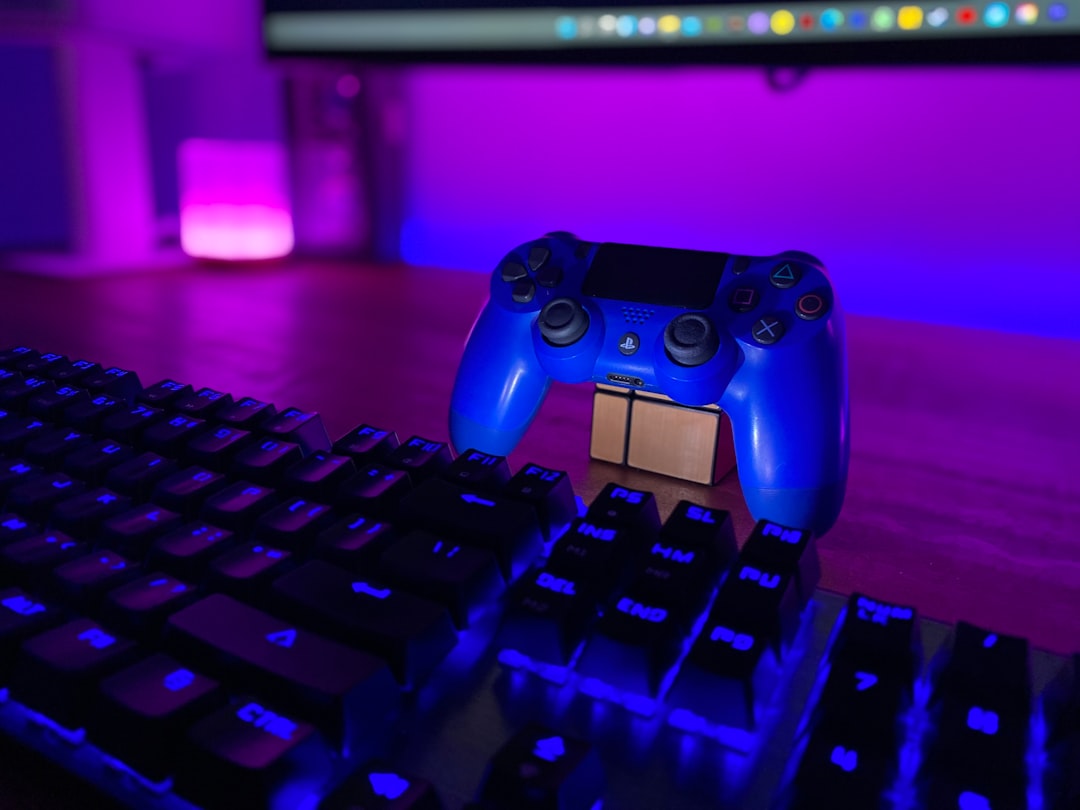
Building a budget gaming setup is easier when you choose around your resolution, games, and upgrade plans instead of buying every component at once. This guide provides a repeatable way to estimate the cost of a PC or console setup, compare 1080p and 1440p targets, divide your budget across the essentials, and identify the upgrade that will make the biggest practical difference next.
Overview
The best affordable gaming setup is not necessarily the one with the cheapest individual parts. It is the setup that avoids expensive mismatches. A powerful PC paired with an unsuitable monitor wastes performance, while a premium headset may be a poor first purchase if the desk, chair, or display is uncomfortable. Start with the experience you want, then work backward to the hardware.
For most buyers, there are three useful targets:
- 1080p general gaming: A practical entry point for single-player games, free-to-play titles, and everyday use. Prioritize a reliable display, adequate storage, and a balanced PC or console.
- 1440p gaming: A sharper target that generally requires more graphics performance from a PC. A high-refresh-rate display is useful, but only if the system can produce the required frame rate in the games you play.
- Entry-level competitive play: Prioritize responsive controls, stable performance, a suitable refresh rate, low-latency connections, and a comfortable position. Decorative lighting and premium materials should come later.
A console can simplify the calculation because the main gaming hardware is fixed. A PC offers more control and upgrade options, but its budget must cover several components and compatibility decisions. If you already own a console, television, desk, or controller, subtract those items before planning new purchases.
How to estimate
Use a simple total-cost formula:
Total setup cost = gaming platform + display + input devices + audio + furniture + accessories + software or delivery allowance.
Do not treat the result as a single fixed number. Create a minimum setup and a preferred setup. The minimum includes everything required to play comfortably. The preferred version adds improvements such as a second storage drive, a higher-refresh-rate monitor, a better microphone, or a more adjustable chair.
Allocate the budget in this order:
- Platform: Choose the PC or console based on the games, services, and performance target you actually use.
- Display: Match resolution and refresh rate to the platform. A 1080p display is usually the straightforward budget choice; 1440p makes more sense when the PC has enough graphics headroom or the display will also serve work and media.
- Controls: Buy a dependable keyboard and mouse for PC play, or confirm that the desired controller is compatible with your platform. Check our controller compatibility guide before assuming a wireless device will work everywhere.
- Audio and communication: Select a comfortable headset with a clear microphone if you play online. A separate microphone is an optional upgrade, not a requirement for a first setup.
- Comfort and accessories: Reserve money for a desk with sufficient depth, a supportive chair, cable management, and a surge-protected power strip. These items affect long sessions more than cosmetic extras.
| Target | Platform focus | Display target | What to prioritize | Delay first |
|---|---|---|---|---|
| Budget 1080p | Entry-level PC or current console already owned | 1080p, with refresh rate matched to the games | Balanced performance, storage, comfortable controls | Second monitor, premium lighting, elaborate cable systems |
| Balanced 1440p | PC with a graphics card selected for the target games | 1440p with an appropriate refresh rate | Graphics headroom, display quality, airflow, upgrade path | Luxury peripherals and oversized furniture |
| Competitive entry | PC or console with stable network and input support | Responsive display with suitable refresh rate | Stable frame rate, mouse or controller fit, headset microphone | High-resolution extras that do not improve responsiveness |
Inputs and assumptions
Before comparing products, write down these inputs. They make the calculation repeatable when prices or hardware generations change.
- Games and resolution: List the games you play most, whether they are competitive or graphically demanding, and whether 1080p is sufficient. Do not select a display resolution only because it appears higher on a product page.
- Existing equipment: Record anything you can reuse, including storage, a controller, speakers, a desk, a monitor arm, or a network cable. Confirm ports and operating-system support before counting it as compatible.
- PC compatibility: For a new PC, check the processor socket and motherboard, memory type, power-supply capacity, graphics-card clearance, cooler height, case airflow, and available storage connections. Our PC upgrade compatibility guide is useful when you are reusing parts.
- Display requirements: Check the monitor input, supported resolution, refresh rate, adaptive-sync support, stand adjustment, and warranty terms. A display should have the connection your platform can actually use.
- Network and room layout: Wireless performance depends on the location of the router, walls, and local interference. If online play matters, include a wired Ethernet option or a suitable wireless adapter in the plan.
- Storage: Estimate how many large games you want installed at once. Console storage expansion has platform-specific requirements, so consult this console storage guide before buying a drive.
Use budget shares rather than rigid prices when planning. Give the largest portion to the platform and display, a moderate portion to controls and audio, and a smaller portion to accessories. For a PC, avoid spending nearly the entire budget on the graphics card while leaving too little for the power supply, case airflow, storage, or monitor. For a console, the platform may take the largest share, making comfort and display quality especially important.
Worked examples
Example one: a 1080p PC setup
Suppose the goal is to play a mix of competitive and mainstream games at 1080p. Start with a balanced PC rather than the most powerful graphics card available. Pair it with a monitor whose refresh rate suits the expected frame rates, then add a wired or low-latency mouse, a keyboard with dependable switches, and a headset with a usable microphone. If money remains, spend it on a larger solid-state drive or better chair adjustment before decorative accessories.
The decision test is simple: if the computer cannot sustain the display's target refresh rate in the main games, either reduce the display target or allocate more of the budget to the PC. Buying a faster monitor first does not automatically create faster gameplay.
Example two: a 1440p upgrade path
For 1440p, identify the games and quality settings that matter before selecting the PC. A system intended for competitive games may need a different balance from one intended for visually demanding single-player releases. Keep the monitor, graphics performance, and power delivery aligned. If the initial budget is limited, it can be sensible to begin at 1080p with a good-quality display and upgrade the graphics hardware later, provided the monitor and power supply were chosen with that plan in mind.
Example three: a console-centered setup
For a console, calculate the platform, display, controller, headset, storage expansion if needed, and furniture. Do not automatically replace a television that already has suitable inputs and acceptable response. Instead, inspect its resolution, game mode, refresh support, viewing distance, and available ports. Put the saved money toward a comfortable chair, a longer charging solution, or storage that is confirmed to work with the console. Our cross-progression guide can also help if you are deciding whether another platform would preserve your existing progress.
A practical buying checklist
- Set the total limit before browsing products.
- Separate required items from nice-to-have upgrades.
- Confirm every port, connector, and platform compatibility detail.
- Compare the complete setup, including delivery, adapters, storage, and replacement cables.
- Check return conditions and warranty coverage before opening hardware.
- Buy the component that removes your current limitation, not the component with the most impressive specification.
When to recalculate
Revisit the estimate whenever pricing changes, a new hardware generation launches, or your target games change. A deal can alter the balance between a prebuilt PC and individual components, while a new console revision or monitor generation may change which accessories remain compatible. Refresh the plan before a major sale, but verify price history rather than assuming every discount is meaningful; our sale buying guide covers the same discipline for games and bundles.
Recalculate after using the setup for a few weeks. Ask three questions: What limits performance? What causes discomfort? What do I use every session? Upgrade in that order. A PC with unstable frame rates needs diagnosis before a new keyboard. A good computer paired with a dim, poorly positioned monitor needs a display adjustment. A comfortable, stable setup may need no upgrade at all.
For the next purchase, write down the current platform, display resolution, typical frame rate, free storage, connection type, and the problem you want to solve. Compare those inputs with the planned component, then confirm compatibility one more time. This keeps your budget gaming setup modular, avoids duplicate purchases, and gives you a clear reason to return to the calculation as hardware and prices change.